Finding module timetables
Updated on: 21 October 2025
Understand when you can check timetables, how to access them and who to contact for help.
You can check the University's live module timetable before you start your course to see an indication of what your timetable could be, and then your personal timetable after completing matriculation and advising.
All timetables are subject to change.
This guide includes screenshots taken on a laptop, so the menus and options that you see here may look slightly different on your mobile, or on your desktop computer or laptop if you resize your browser window or zoom in.
Core and non-core teaching
Two terms are used in University timetabling to differentiate between teaching activities:
- Core: whole-class activities like most lectures. This doesn't reflect the importance or status of the activity, just that it's for everyone on the module.
- Non-core: sub-group activities like tutorials or laboratory sessions.
Some Schools use the University’s Module Management System (MMS) for tutorial sign-ups, but not every School uses the same method.
For more information about being allocated to or signing up for non-core activities, please contact the relevant School.
Before you start your course
The University’s timetable for the previous year can give you an idea of what your week might look like during your studies. This may be especially helpful for part-time workers, commuters or flexible learners.
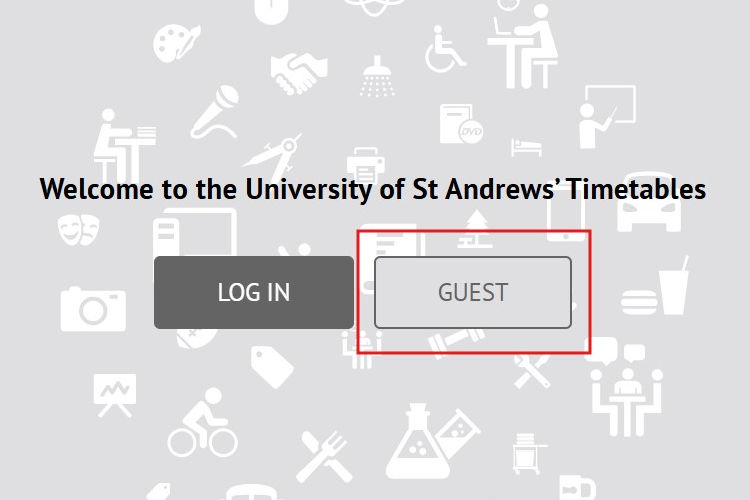
1. Log in as a guest
To check a module’s timetable before completing matriculation and advising, you must log in to Timetables as a guest.
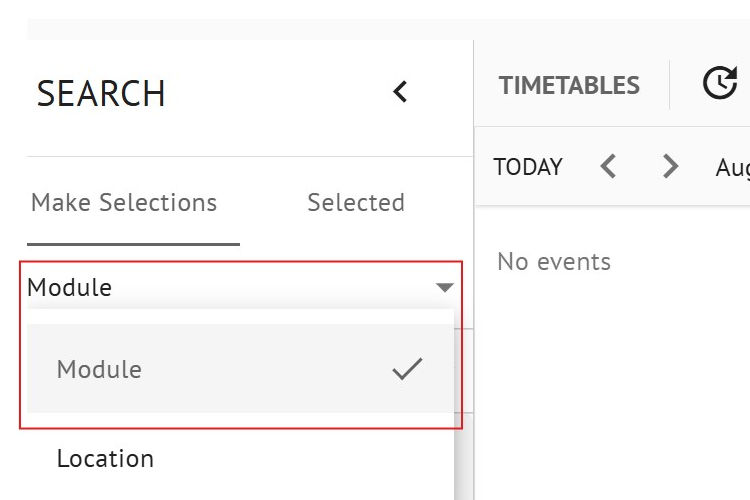
2. Select Module from the search dropdown menu
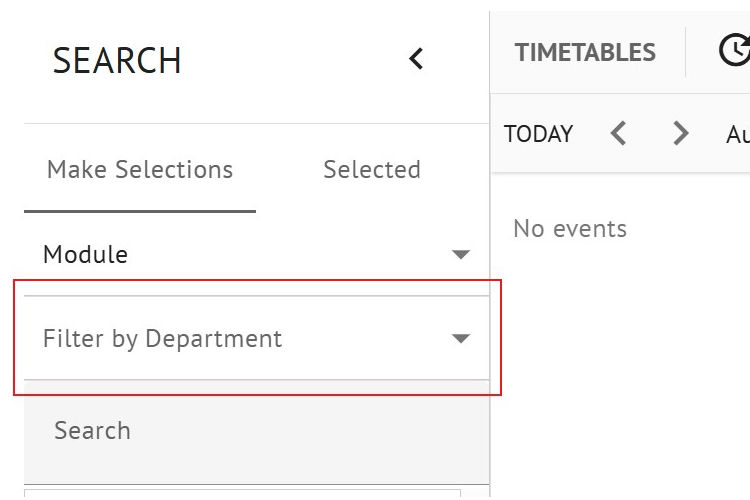
3. Filter your results
You can filter results by department. Clicking on the dropdown menu will show you a list.
The default timetable view is for today, but you can choose to view your selected module timetable by:
- day
- week
- month
- agenda (a list)
- specific date
To view more information on a timetable slot, you can click on it to reveal more details.
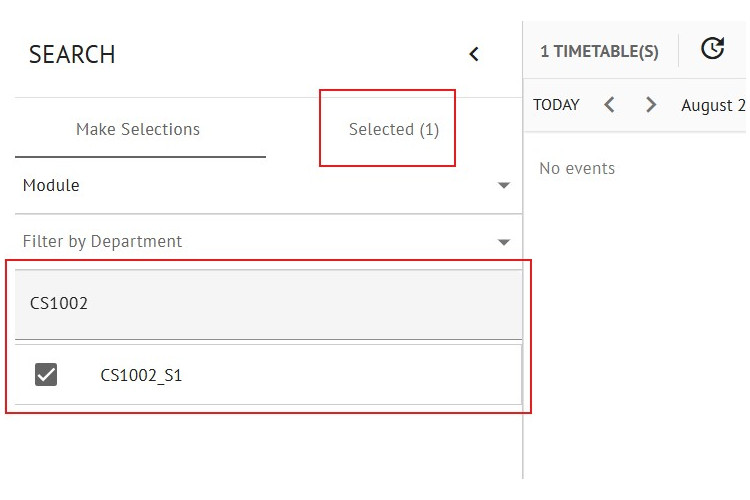
4. Find and select your module
You can enter the first few characters of the module code you want to view, and then select it from the list of results. The module will then appear in the Selected tab. You can select more than one module to view, but it's clearer to see the timetable details if you look at a single module.
Academic year timetable
The academic year timetable covers the period from September to August. It is not guaranteed to be the same in the following academic year, but it can give you a good idea of what to expect, especially for first and second-year modules (level 1000 and 2000). The timetable information changes during the year.
Full current academic year
Available on: Timetables
Available from: mid-January to mid-August
From mid-January the Semester 2 timetable becomes visible.
Next academic year
Available on: Timetables
Available from: mid-August
The timetable for the next academic year, starting in September, will only show you the first semester core activities like lectures. It won’t include non-core activities like tutorials or laboratory sessions when there is more than one available for you to be assigned to or choose to go to.
Using the 2024-2025 and 2025-2026 timetables as an example:
- From mid-January 2025 to mid-August 2025, you can see the 2024-2025 module timetable.
- From mid-August 2025 to mid-January 2026, you can see the first semester of the 2025-2026 module timetable.
- From mid-January 2026 to mid-August 2026, you can see the 2025-2026 module timetable.
When you start your course
Personal timetable
Your personal timetable will become available on Timetables after you have completed matriculation and advising. Allow 24 to 36 hours for it to show.
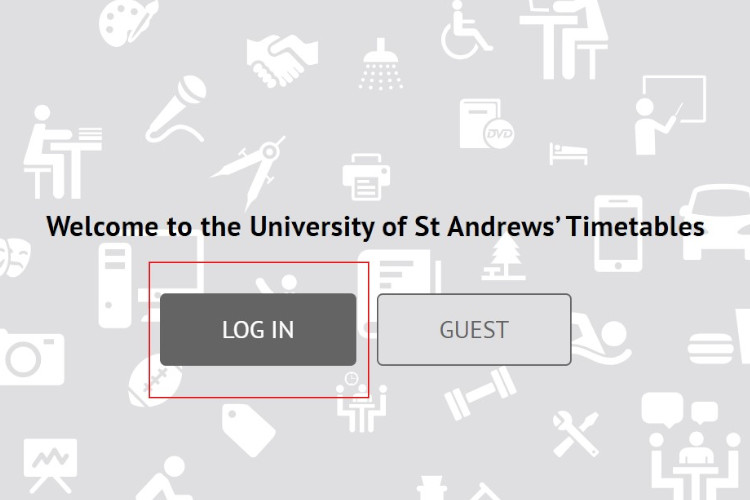
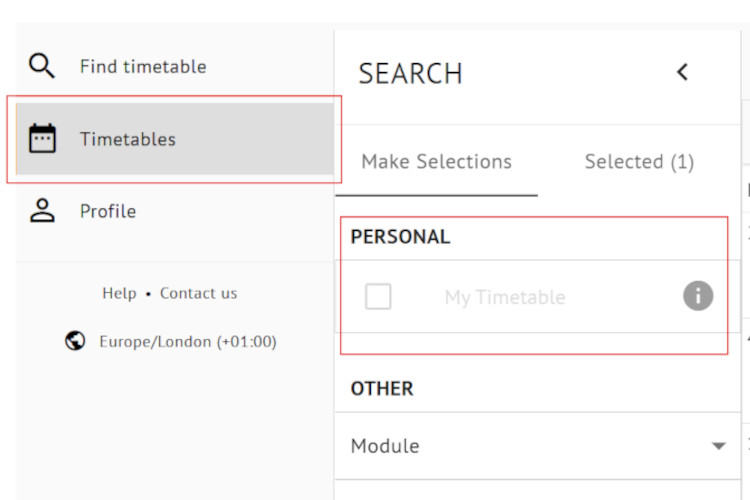
You must use the LOG IN button (not GUEST) and then select My Timetable to view your personal timetable:
You can also find your personal timetable by logging into MySaint and selecting Timetable/Events:

Semester 1
Your personal timetable for Semester 1 becomes available after you complete matriculation and advising. After this, it may take 24 to 36 hours (excluding Saturday and Sunday) for it to show.
Available from:
- Early September:
- only core activities will show
- non-core activities will only show after you sign up or get assigned to them and may take 24-36 hours to show
- Late September: all activities will show
Semester 2
Available from:
- Mid-January:
- core activities for Semester 2 are available approximately a week before teaching starts
- non-core activities will show after you sign up or get assigned to them
Calendars
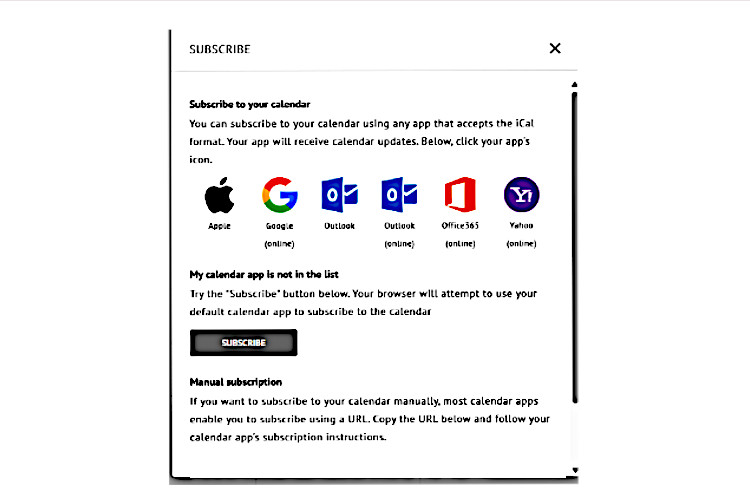
You can add your timetable to your calendar on Apple, Google, Outlook, Office365 or Yahoo, let your browser add it to your default calendar app, or add it manually. Log into Timetables and click on Subscribe below your profile name to see the calendar subscription options.
Timetable changes
Timetables are planned based on expectations. Major or minor changes can happen, scheduled activities may be rescheduled to a different location, time, day or week due to changing requirements or unforeseen circumstances.
The day or time of core activities for level 1000 and 2000 modules does not typically change. Changes to these activities usually involve locations.
Minor changes may include room swaps, changing the time, duration or day of an activity on one or more weeks, or a class being cancelled or rearranged.
Most major changes will have been made by the end of the third teaching week of each semester.
Notification of changes
When there is a change to your personal timetable for an activity due to happen in the next 7 days you will receive an email notification to check your timetable.
To receive notifications of timetable changes, you must agree to them by going to Profile on Timetables and unticking the I don't want to receive notifications box.

Help
For questions on:
- activities on your timetable, please contact the School that delivers your module
- a timetable clash, speak to your Adviser or School
- accessing and viewing timetables, email timetabling@st-andrews.ac.uk
- changing modules, read the guidance on how to request a module change