Copy content from one Moodle course to another
Updated on: 19 June 2025
Learn how to add, use and clear a Moodle sharing cart block to copy content from a Moodle course.
The sharing cart block temporarily holds the content of sections, activities and resources so you can move it between Moodle courses.
Content copied into the sharing cart block is duplicated into a personal library from which it may then be copied out to other Moodle courses.
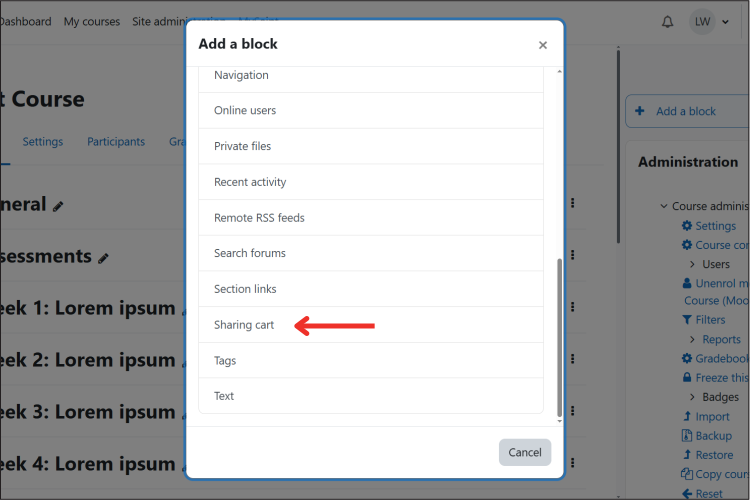
Add a sharing cart block
Ensure the sharing cart block is present in both Moodle courses:
- the course you are copying content from
- the course you are copying content to
Choose 'Sharing cart' from the 'Add a block' options.
Copy content into the sharing cart
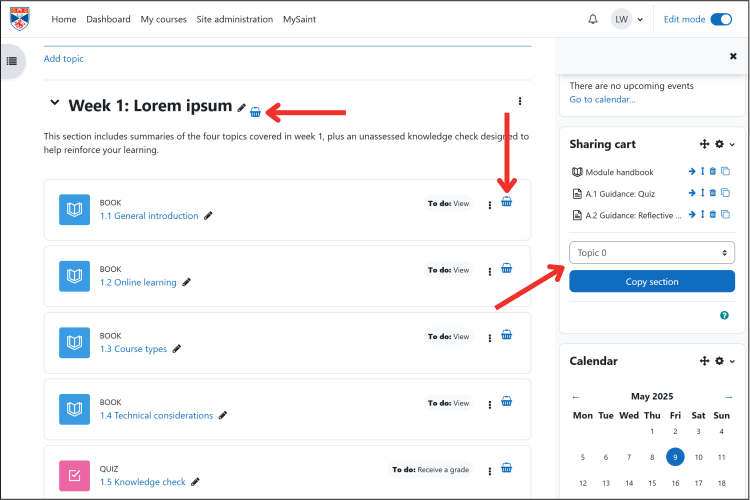
Go to the course you want to copy content from and enable 'Edit mode'. To copy content into the sharing cart, select the content by doing either of the following:
- Choose the 'Copy to sharing cart' option (basket icon) next to the activity, resource or section.
- Set the section in the dropdown menu of the block, click the 'Copy section' button, then confirm.
The content will appear in the sharing cart block. You may need to refresh the page to see it.
Copy content out of the sharing cart
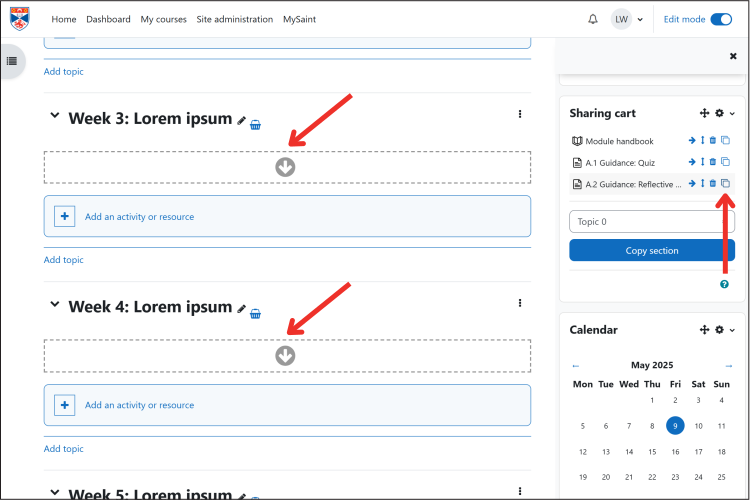
Go to the course you want to copy content to and enable 'Edit mode'. To copy content out of the sharing cart and into the course, follow these steps:
- Open the block drawer and locate the sharing cart block.
- Select the 'Copy to course' option next to a content item in the block.
- Pick the 'Copy here' option (down arrow icon) in the section you want to copy the content into.
The content will appear in the course. You may need to refresh the page to see it.
Clear the sharing cart
It is important to clear your sharing cart after you have finished using it.
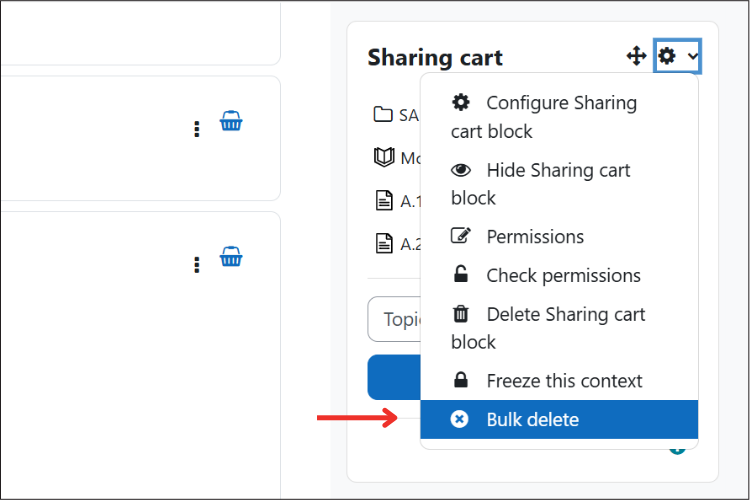
- Open the 'Actions menu' (cog icon) on the sharing cart block.
- Choose 'Bulk delete'.
- Select the content items using the checkboxes.
- Click the 'Delete selected' button.