Filters in Moodle
Updated on: 18 July 2025
Learn about the filters in the University’s Moodle environment.
Filters and what they do
Filters operate on the content you put into the text editor in a Moodle course. They process and apply actions to the content before it displays. The action applied depends on the filter in question.
Explore the different filter types in the University's Moodle environment below.
The Ally filter displays the accessibility scores and alternative formats selections associated with resources in a Moodle course.
More information about this filter can be accessed via the following source.
Do not turn the Ally filter off
This filter should always be on as it is important for accessibility.
The MathJax filter renders TeX expressions and improves the equation editor experience in a Moodle course.
More information about this filter can be accessed via the following source.
The TeX notation filter converts TeX expressions to GIF, PNG or SVG images in a Moodle course.
More information about this filter can be accessed via the following source.
The algebra notation filter displays mathematical expressions as if they are typeset in a Moodle course.
More information about this filter can be accessed via the following source.
Vendor recommendation
Use the MathJax filter for writing mathematical equations and expressions instead of this.
The multimedia plugins filter replaces media links (to YouTube videos or MP4 files, for example) with the appropriate multimedia player code to play the resource in a Moodle course.
More information about this filter can be accessed via the following source.
The convert URLs into links and images filter changes URLs to clickable links and can replace image URLs with images so they display inline in a Moodle course.
More information about this filter can be accessed via the following source.
The glossary auto-linking filter links glossary entries to matching words or phrases where they appear in the Moodle course, providing pop-up concepts and definitions inline.
More information about this filter can be accessed via the following sources.
The database auto-linking filter links database entries to matching words and phrases where they appear in the Moodle course, providing pop-up concepts and definitions inline.
More information about this filter can be accessed via the following sources.
Default filter settings
The table outlines the default filter settings applied to Moodle courses. They will be set to this in your course unless they have been changed by someone with an editing role.
| Filter | Default |
|---|---|
| Ally | On |
| MathJax | On |
| TeX notation | On |
| Algebra notation | On |
| Multimedia plugins | On |
| Convert URLs into links and images | Off - Main Moodle site On - PGT Digital Moodle site |
| Glossary auto-linking | Off |
| Database auto-linking | Off |
Managing filters in Moodle
Only make changes to filters in a Moodle course if there is a specific need to do so. The default filter settings will be suitable in most cases and can remain unchanged.
Filters that are not relevant in your course can stay on unless they are causing an issue. For example, you can leave the MathJax filter on even if you are not using mathematical notation.
Filters can be turned on or off at the course level, or in an activity or resource within a course. Here are two examples of when you might want to turn a filter off.
Example 1: Course level change
The multimedia plugin filter is on in your course. Every time you insert a link to a video on YouTube, the video displays as an embedded player on the page. You don’t want this to happen. Instead, you want links to videos to show as URLs on all the pages.
In this case, it is appropriate to turn off the multimedia plugin filter for the course.
Example 2: Activity or resource level change
The glossary auto-linking filter is on in your course. You want the terms in your glossary to auto-link with the learning content in the course, but not with the quiz. You don't want the glossary definitions to appear in the quiz as this might give away the answer to a question.
In this case, it is appropriate to turn off the glossary auto-linking filter in the quiz activity itself.
Ensure you understand what the auto-linking filters do before using them.
Everyone should be aware of, and consider, the potential implications of auto-linking. All staff editing or contributing content to the Moodle course should know if these filters are in use.
Think about where it might be appropriate to turn the filters off at the activity or resource level. This is particularly important for activities designed to assess learners that carry credit.
Turn a filter on or off in Moodle
Consider what level it is most appropriate to turn the filter on or off at before doing so. If unsure whether to apply the change to the course, or only a particular activity or resource in the course, refer to the filter changes at different levels section of this guide.
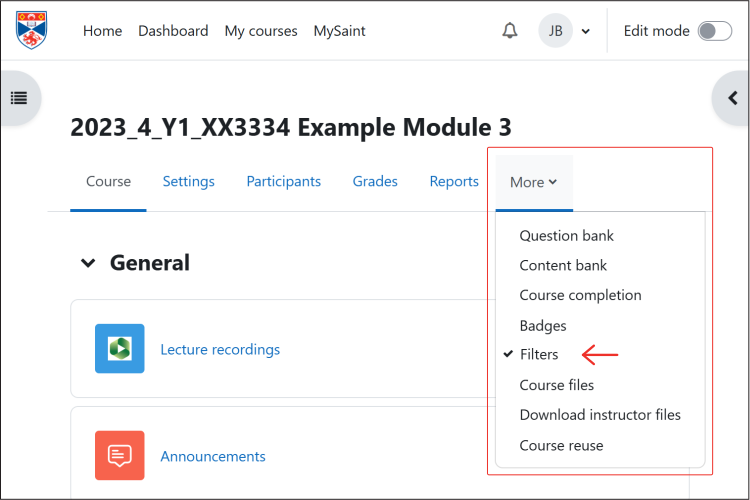
- Select the ‘More’ tab.
If making the filter change at course level, access the ‘More’ tab from the main course page (under the title of the course).
If making the filter change at activity or resource level, first go into the activity or resource, then access the ‘More’ tab.
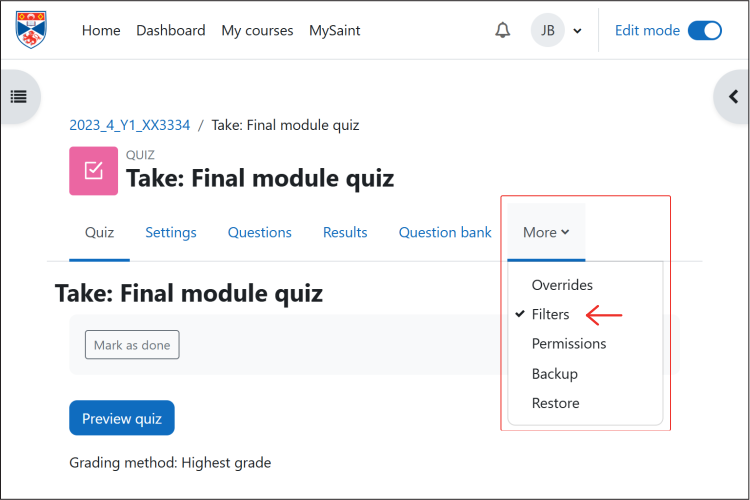
- Choose ‘Filters’.
- Set the filter on or off as required.
- Click the 'Save changes' button.