Blocks in Moodle
Updated on: 18 July 2025
Learn about the blocks in the University's Moodle environment.
Blocks and what they do
Blocks are elements which add extra information or functionality to a Moodle course. Each block type serves a specific purpose. Blocks are found in and added to the block drawer of a Moodle course.
Explore the different block types in the University's Moodle environment below. Some blocks are present in one Moodle site only or are subject to restrictions, so be sure to check their availability.
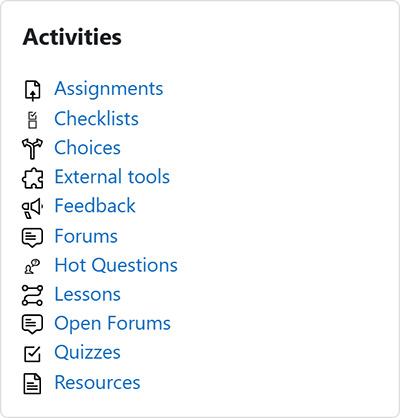
The activities block lists the activities and resources present in a Moodle course by tool type.
More information about this block can be accessed via the following source.
Availability by site
Course-level block that can be added to any Moodle course if required. This availability applies in both Moodle sites.
| Block | Main Moodle | PGT Digital Moodle |
|---|---|---|
| Activities | Available | Available |
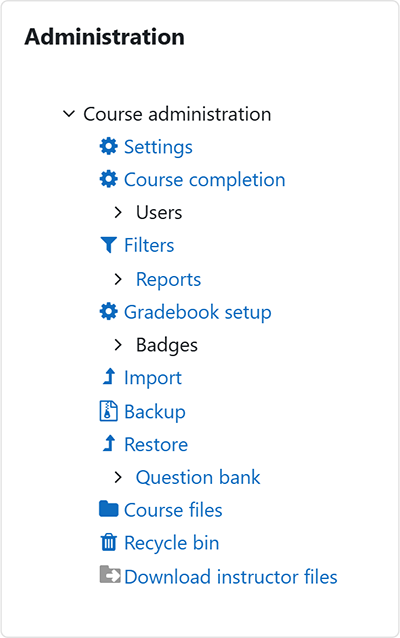
The administration block provides links to key settings, tasks and actions in a Moodle course.
More information about this block can be accessed via the following source.
Availability by site
Site-wide block that is configured to appear in every Moodle course by default. This availability applies in both Moodle sites.
| Block | Main Moodle | PGT Digital Moodle |
|---|---|---|
| Administration | Available | Available |
The badge awarder block allows pre-added badges to be awarded in a Moodle course via CSV file.
More information about this block can be accessed via the following source.

Availability by site
Course-level block that can be added to any Moodle course if required. This availability applies in one Moodle site only.
| Block | Main Moodle | PGT Digital Moodle |
|---|---|---|
| Badge awarder | Available | Unavailable |
The calendar block displays events in the Moodle calendar, such as open and close dates on activities in a Moodle course, and any manually added events.
More information about this block can be accessed via the following source.

Availability by site
Course-level block that can be added to any Moodle course if required. This availability applies in both Moodle sites.
| Block | Main Moodle | PGT Digital Moodle |
|---|---|---|
| Calendar | Available | Available |
The completion levels block tracks learner progress in a Moodle course. It gamifies the learning experience by awarding levels based on progress through completion tracked activities and resources.
More information about this block can be accessed via the following source.

Availability by site
Course-level block that can be added to any Moodle course if required. This availability applies in one Moodle site only.
| Block | Main Moodle | PGT Digital Moodle |
|---|---|---|
| Completion levels | Unavailable | Available |
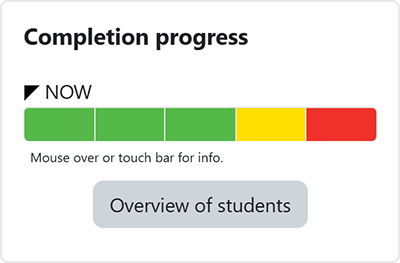
The completion progress block tracks learner progress in a Moodle course. It uses colour and text indicators to show what completion tracked activities and resources have been completed or not.
More information about this block can be accessed via the following source.
Availability by site
Course-level block that can be added to a Moodle course if required. The availability of the block is restricted to a certain role in one of the Moodle sites.
| Block | Main Moodle | PGT Digital Moodle |
|---|---|---|
| Completion progress | Available (Course Coordinators only) | Available |
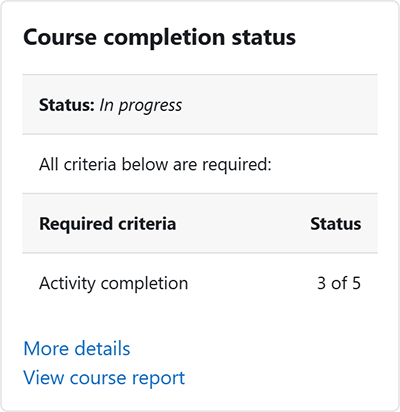
The course completion status block shows what has been done towards completing the Moodle course based on the completion requirements set.
More information about this block can be accessed via the following source.
Availability by site
Course-level block that can be added to any Moodle course if required. This availability applies in both Moodle sites.
| Block | Main Moodle | PGT Digital Moodle |
|---|---|---|
| Course completion status | Available | Available |
The latest announcements block displays recent posts made in the announcements forum of a course and provides a link to access older posts. The number of announcements displayed depends on the number set in the appearance section of the settings for the Moodle course.
More information about this block can be accessed via the following source.

Availability by site
Course-level block that can be added to any Moodle course if required. This availability applies in both Moodle sites.
| Block | Main Moodle | PGT Digital Moodle |
|---|---|---|
| Latest announcements | Available | Available |
The latest badges block displays badges earned by a user in the Moodle course.
More information about this block can be accessed via the following source.

Availability by site
Course-level block that can be added to any Moodle course if required. This availability applies in one Moodle site only.
| Block | Main Moodle | PGT Digital Moodle |
|---|---|---|
| Latest badges | Available | Unavailable |
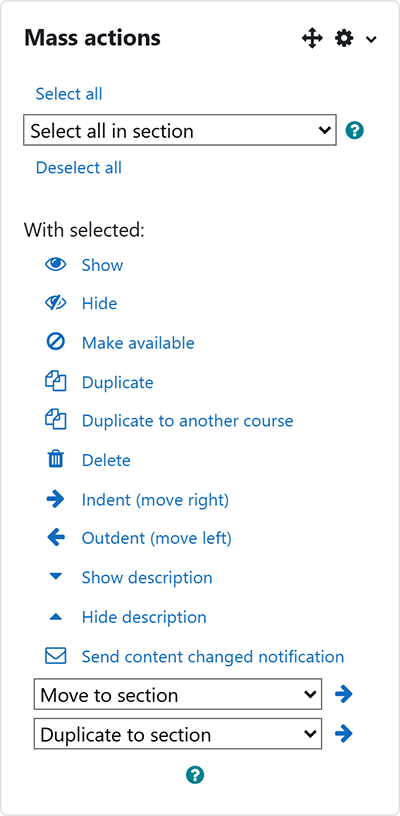
The mass actions block allows editors to apply actions to multiple resources or activities in a Moodle course, rather than having to perform repeated actions on individual items.
More information about this block can be accessed via the following source.
Availability by site
Course-level block that can be added to any Moodle course if required. This availability applies in both Moodle sites.
| Block | Main Moodle | PGT Digital Moodle |
|---|---|---|
| Mass actions | Available | Available |
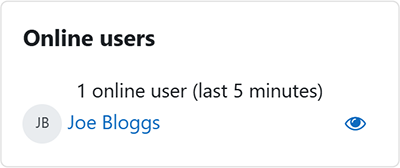
The online users block shows a list of enrolled users who have been logged into the Moodle course recently.
More information about this block can be accessed via the following source.
Availability by site
Course-level block that can be added to any Moodle course if required. This availability applies in both Moodle sites.
| Block | Main Moodle | PGT Digital Moodle |
|---|---|---|
| Online users | Available | Available |
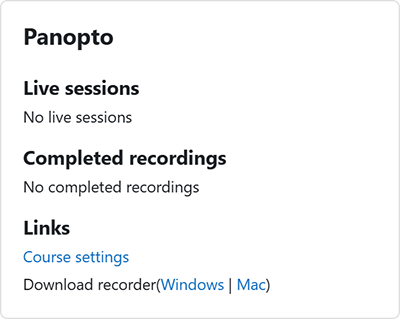
The panopto block connects the Moodle course to a Panopto folder (used for video recording, storage and streaming) in the lecture capture system. It displays links to published recordings and live webcasts held in the Panopto folder.
More information about this block can be accessed via the following source.
Availability by site
Course-level block that is added to every Moodle course at creation. This availability applies in both Moodle sites.
| Block | Main Moodle | PGT Digital Moodle |
|---|---|---|
| Panopto | Available | Available |
Block visibility
Panopto block visibility is important for permissions syncing between the Moodle course and Panopto folder. Changes in the course participants list do not sync to the viewer and creator groups in the Panopto folder if the block is hidden. Only hide the block if not using the Panopto folder. It should always be visible in Moodle courses for taught modules.
The people block lists any participants who have the role of Course Coordinator or Module Coordinator in the Moodle course.
More information about this block can be accessed via the following source.

Availability by site
Course-level block that can be added to any Moodle course if required. This availability applies in both Moodle sites.
| Block | Main Moodle | PGT Digital Moodle |
|---|---|---|
| People | Available | Available |
The point of view block enables use of a feedback reaction system in a Moodle course. The system offers the possibility to react to content using emojis and give difficulty tracks, whilst the block provides access to a reaction details summary report. This report shows how learners reacted to the activities and resources which have reactions enabled on them.
More information about this block can be accessed via the following source.

Availability by site
Course-level block that can be added to any Moodle course if required. This availability applies in one Moodle site only.
| Block | Main Moodle | PGT Digital Moodle |
|---|---|---|
| Point of view | Unavailable | Available |
The recent activity block shows participants updates about what has happened and changed in the Moodle course since they last accessed it.
More information about this block can be accessed via the following source.

Availability by site
Course-level block that can be added to any Moodle course if required. This availability applies in both Moodle sites.
| Block | Main Moodle | PGT Digital Moodle |
|---|---|---|
| Recent activity | Available | Available |
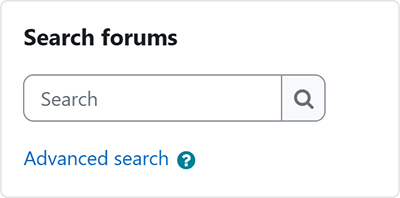
The search forums block allows the forums in a Moodle course to be searched for a word or phrase.
More information about this block can be accessed via the following source.
Availability by site
Course-level block that can be added to any Moodle course if required. This availability applies in both Moodle sites.
| Block | Main Moodle | PGT Digital Moodle |
|---|---|---|
| Search forums | Available | Available |
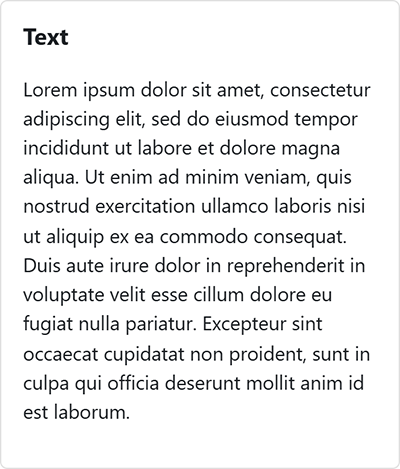
The text block displays text, links and multimedia inside a block in a Moodle course.
More information about this block can be accessed via the following source.
Availability by site
Course-level block that can be added to any Moodle course if required. This availability applies in both Moodle sites.
| Block | Main Moodle | PGT Digital Moodle |
|---|---|---|
| Text | Available | Available |
The upcoming events block displays future events (up to ten events scheduled in the three weeks ahead) from the Moodle calendar in a summarised list in a Moodle course.
More information about this block can be accessed via the following source.

Availability by site
Course-level block that can be added to any Moodle course if required. This availability applies in both Moodle sites.
| Block | Main Moodle | PGT Digital Moodle |
|---|---|---|
| Upcoming events | Available | Available |
Add a block in Moodle
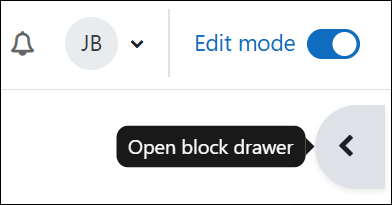
Toggle edit mode on in the Moodle course.
Open the block drawer using the right-hand tab.
Choose ‘Add a block’ at the top of the block drawer.
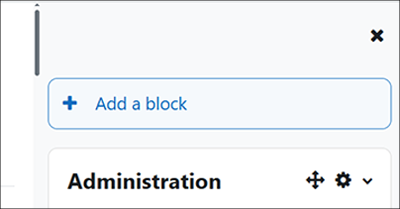
Select the block you want to add from the list.