Use Turnitin with Moodle's assignment activity
Updated on: 23 April 2026
Recommended workflow for setting up the Turnitin submission tool.
You can configure a Moodle assignment to allow submissions to be checked for similarity by Turnitin. This functionality also enables you to use the grading tools available in either Moodle, Turnitin or a combination of both.
Creating your assignment
Go to Add an activity or resource and select Assignment.
For more details, read:
- Moodle's official documentation on assignment activity settings
- Turnitin's official documentation on using Turnitin Similarity in a Moodle assignment
General settings
Assignment name: Give the assignment a name.
Description: Add an optional description and choose whether to display it on the course page.

Activity instructions: These will only be displayed once the assignment is open to students and they access it.
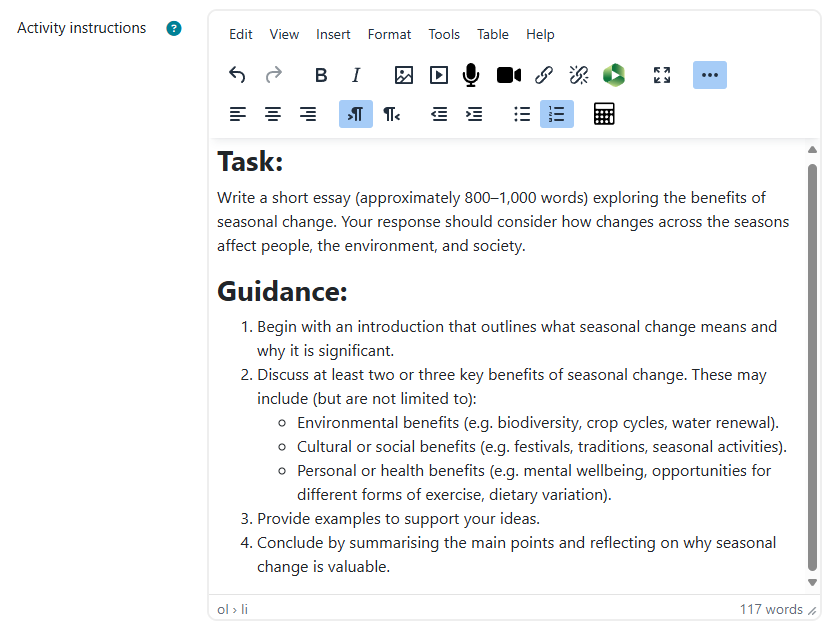
Additional files: Add any supplementary files students are required to access to complete the assignment.
Only show files during submission: Set whether students can access supplementary files before the assignment opens or only during the submission period.

Availability
Choose dates for:
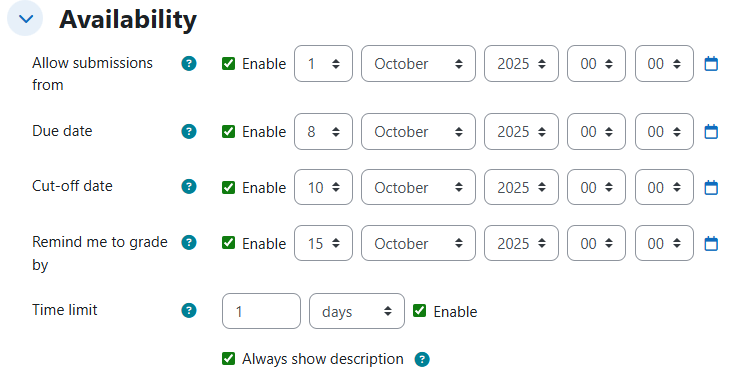
- Allow submissions from: If enabled, students cannot submit before this date. Required for Turnitin.
- Due date: If enabled, submissions are still accepted after this date, but are labelled as late in Moodle. Required for Turnitin.
- Cut-off date: If enabled, no further submissions are accepted after this date.
- Remind me to grade by: Notifies staff if submissions have not been graded by this date.
- Time limit: Choose whether there is a time limit. Students will have this amount of time to complete the assignment within the dates set. If a cut-off date is set, a student may have less time available if they choose to start the assignment close to the cut-off date. For example, if the time limit is 2 hours but they start 1 hour before the cut-off date, they will only have 1 hour to submit.
- Always show description: Choose whether the assignment description is displayed always or only after the Allow submissions from date.
Submission types
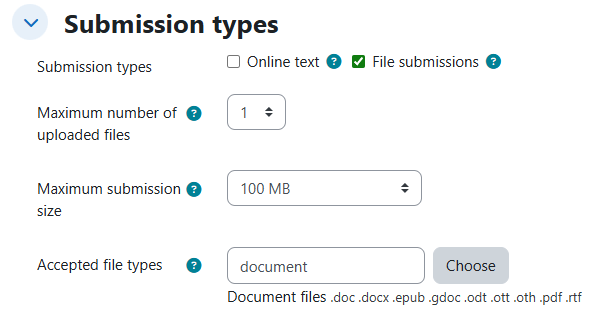
Submission types: Select whether the assignment should be completed in the online text editor within Moodle, as a file submission, or as a combination of both. If both are selected, submissions to Turnitin will be made for the online text and for each file upload that meets Turnitin's file requirements.
Maximum number of uploaded files: If multiple files are allowed, each file that meets Turnitin's file requirements will be checked for similarity.
Maximum submission size: Must be set to 100MB or less. Turnitin will not accept files larger than 100MB. See Turnitin's file requirements for more information.
Accepted file types: Choose whether to set the Accepted file types. This is not required, but it can help avoid incompatible formats from being submitted.
Feedback types
Choose the feedback options you wish to be available within Moodle. Click the question mark next to each option to learn more.

In addition to these, when using Turnitin with Moodle assignment, you will be able to provide feedback by annotating within the Turnitin Feedback Studio. If using Turnitin for feedback, we recommend deselecting all the Feedback types options in Moodle.
Submission settings
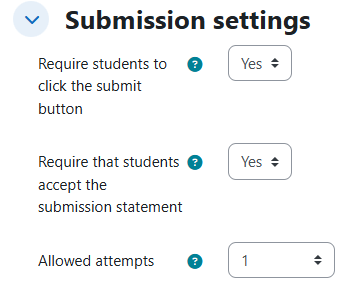
Require students to click the submit button: If enabled this allows students to indicate their submission is ready for marking ahead of the submission deadline.
Require that students accept the submission statement: If enabled, students will need to accept the following statement when they submit:
“This assignment is my own work, except where I have acknowledged the use of the works of other people.”
Allowed attempts: You can allow students to submit multiple times. If, for example, they realise they made an error before the submission deadline, this feature could allow them to submit a corrected version. If enabled, you should exercise caution if choosing to start marking before the submission deadline.
Turnitin has restrictions on how many times a new similarity report will be generated within a set time period when a new attempt is submitted. See more on restrictions on the Turnitin website.
Group submission settings
If you choose to set up a group assignment submission, select Yes and then explore the options available.

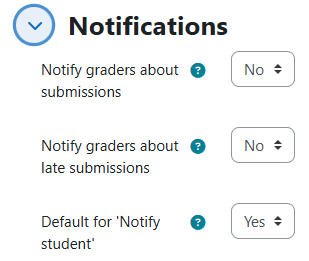
Notifications
Set the notifications for the assignment as required. Click the question mark icons for more information on each option.
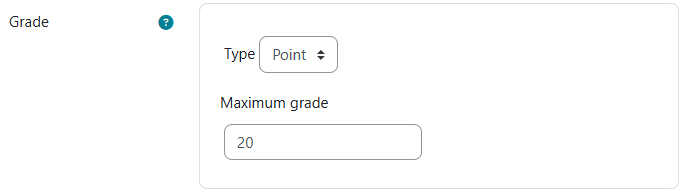
Grade
Grade: Set the grade type. In this example, we use 20 as the maximum grade to align with the 20-point grading scale at St Andrews.
Grading method: Defaults to Simple direct grading. For further information on the other options available, visit the Moodle documentation on advanced grading methods.
Grade category: Is only relevant if you are using grade categories within the Moodle course gradebook and have set them up prior to creating the assignment. See Moodle's documentation on grade categories.
Grade to pass: Allows the assignment to be used to restrict access to other parts of the course. For example, you may allow students to submit multiple times and only once they have reached the passing grade, allow them access to a feedback document for the assignment.
Anonymous submissions: This setting also controls the anonymity of submissions in Turnitin. This should generally be set to Yes. Once the assignment has been fully graded, there is an option to reveal student identities.
Hide grader identity from students: You can choose whether students see who graded their assignment. If left unhidden, this can be useful where more than one member of staff is grading submissions, as the student can identify who to speak to if they have a query.
Use marking workflow: We recommend using the marking workflow. It provides a flagging system you can use to track the progress of submissions through your marking process. It also withholds grading information from students within Moodle. All statuses other than Released prevent students from seeing any grade information. For more information, view Moodle's documentation on marking workflow.
A benefit of this method is enabling the provision of feedback to students before releasing marks. This will be explored later in this guide.
Use marking allocation: Requires marking workflow to be enabled. Allows you to assign submissions to each member of staff grading the assignment.
Allow partial release of grades while marking anonymously: Requires anonymous marking and marking workflow to be enabled. Can be useful where multiple staff are marking an assignment for groups of students. A group can have their feedback and or marks released once ready, rather than waiting for all the other groups to be marked.
Standard setting menu options
The following standard menus apply across all Moodle activities.
Turnitin Similarity
This section allows you to enable and configure some of the features of Turnitin similarity checking.
The Quickmark manager allows you to create quick mark sets for use within Feedback studio. More information on Feedback and QuickMarks is available in the Turnitin guides. There may be some visual differences in the guidance compared to when using in Moodle but the functionality remains the same.
The Peermark manager allows you to configure the assignment to enable a peer assessment activity within Turnitin. See more information on Peermark in the Turnitin guides. Peermark only appears after the assignment has been saved at least once.

Launch Peermark Manager will appear when you load the assignment settings screen.
Enable Turnitin to use similarity checking/feedback studio.
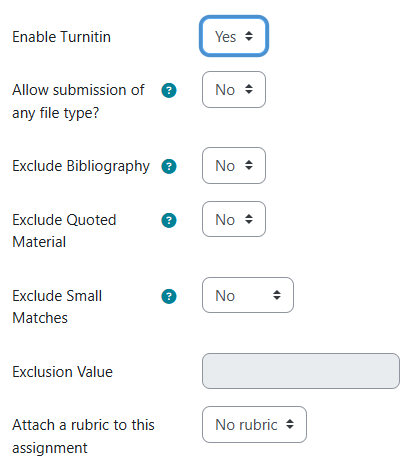
Click on the question marks to see what the other available options do.
If you want to grade in Feedback Studio using rubrics, click Launch Rubric Manager.

You can create new rubrics or grading forms. More information on creating rubrics and grading forms can be found in the Turnitin guides.
There is an option to use rubrics to score the submission, and there is an option to use rubrics for feedback only. This is configured during the setup of your rubric.
Once you have created a rubric, it will become an option in the drop-down menu.

Finally, click Save and return to course.
If desired, you can send content change notifications to inform users who may have already accessed an activity that it has been changed in some way.
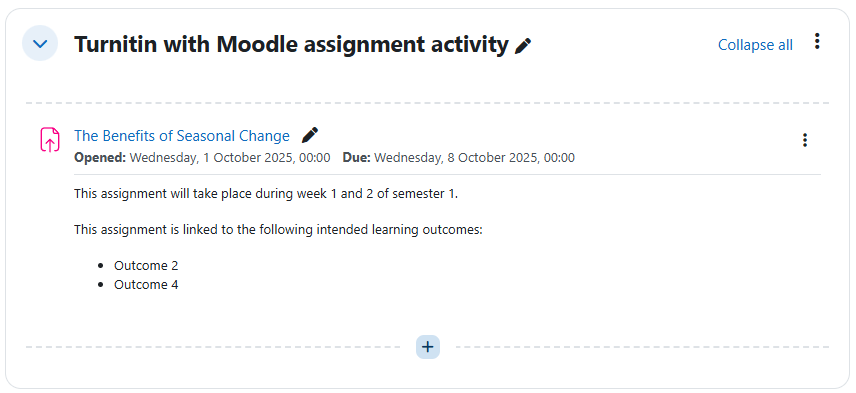
On your Moodle course, the assignment may look something like this, depending on your setup.
Release of grades and feedback
It is important to decide when and where students will be given their marks and feedback before the marking process starts. This will ensure students are not misinformed or provided with conflicting information in different systems.
If using marking workflow, student access to marks and feedback in both Turnitin and Moodle will not be granted until the submission has the released status.
If using anonymous grading, you will also need to navigate to the Submission screen in the assignment and choose to reveal student identities, unless you have enabled Allow partial release of grades while marking anonymously in the Grade section of the assignment settings.
Releasing marks and feedback through Turnitin
Provide both marks and feedback directly within the Turnitin Feedback Studio. Turnitin will transfer marks into the Moodle gradebook, which can be useful for bulk exporting grades. If grades are subject to adjustments that happen outside of Turnitin and Moodle, such as lateness penalties applied in MMS, students may be presented with conflicting values in different locations.
Releasing feedback through Turnitin and marks in Moodle
You can provide feedback within Turnitin Feedback Studio and input marks directly into Moodle. You can use the gradebook to quickly input the grades for multiple students. If grades are subject to adjustments that happen outside of Moodle such as lateness penalties applied in MMS, students may be presented with conflicting values in different locations.
To hide marks for an activity in the Moodle gradebook, access the gradebook for your Moodle course, find the column for the relevant assignment activity, click on the ellipsis and select Hide. These will remain hidden irrespective of the marking workflow state.

Feedback and marks in Moodle
You can provide both marks and feedback within the Moodle grader. If grades are subject to adjustments that happen outside of Moodle, such as lateness penalties applied in MMS, students may be presented with conflicting values in different locations.
Feedback only in Moodle
You can provide feedback only using Moodle grader. You must not enter any grades into Moodle. There is no way in Moodle to release the feedback without displaying grades. The assignment must be visible in the gradebook, and if using, the marking workflow must be set to Released for students to gain access to assignment feedback.
Submissions
Once the assignment is open, students can make their submissions. These will be automatically sent to Turnitin and a similarity score will populate within Moodle.

If enabled in the assignment settings, students will be presented with the submission confirmation statement.

Once submitted, students will see an overview of their submission status.

If you have chosen to use a marking rubric within Turnitin, students will get the option to view it once they begin the assignment and will have the option to view it after they have submitted.

Marking
To proceed with marking, staff should navigate to the assignment in Moodle. Either select Grade or click on the Submissions tab.
Clicking Grade will automatically load the first submission within the assignment. If providing feedback and or marks within Moodle, you can begin marking from this screen. You will see different options available depending on the Moodle feedback options selected in the assignment settings.
Opening the Submissions screen will display all of the students enrolled on the course and information about the submissions they have made. From here, you can either choose to feedback and or mark in Moodle by selecting the ellipsis in the grade column and clicking Grade or to feedback and or mark using Turnitin by clicking on the pencil icon. Scores entered into Turnitin are immediately fed into Moodle.
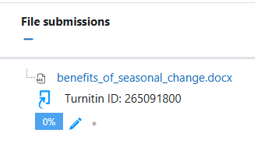
If online text and file submissions have been enabled and submitted. There will be a pencil icon for each part of the assignment. You will be able to provide feedback on each individual item. If you enter a mark into Turnitin, the most recently applied mark for any of the items will be transferred into Moodle.
For example, you enter 15/20 when marking the online text, then enter 16/20 when marking the file submission, Moodle will display 16/20. If you then mark the online text submission again and change the mark to 10/20, the Moodle grade will show as 10/20. We recommend not using Turnitin for marking when the assignment is in this configuration.
Turnitin will display the similarity score once processed. Clicking the score or the pen icon will load Feedback Studio in a new window.
For more information, see:
- Turnitin's guides on marking in Turnitin Feedback Studio
- Moodle's documentation on using Moodle assignment for grading
Links to external sites and information
The University is not liable for external web content and may not be aware when this content is changed or removed.