Manage Moodle course visibility
Updated on: 9 December 2025
Learn how to make a Moodle course available to students.
Visibility
By default, student access to newly created and rolled-over Moodle courses is disabled. For new Moodle courses, this allows staff to populate content on their course before students gain access.
For rolled-over Moodle courses, staff can review and update the content of the course before making it visible to students.
If a student attempts to access a Moodle course which is not available to students, they will see the following message:
"Student access to the Moodle course for this module has not yet been enabled. Teaching staff will enable access once they are happy for students to access the course. If you believe the course should already be available, please contact the Module Coordinator. You can find details of who to contact by looking up the module in the module catalogue."
For staff, on the My Courses page, a hidden course will display the text Hidden from students.

Enable student access to a Moodle course
1. Find the course in Moodle and click Settings under the module title.
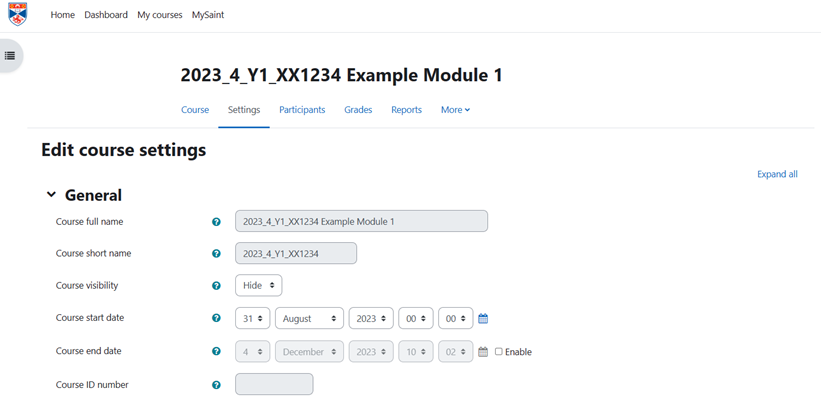
2. Change the course visibility from Hide to Show.
3. Scroll to the bottom of the page and click Save and display.
On the My Courses page, the text Hidden from students will have been removed.

Changing course visibility on a taught course
For taught courses, an alternative way of changing the course visibility is to use the course visibility button, located in the block drawer at the top right of the module page.
If the course is currently hidden, the button will display a closed eye symbol.

Press the grey Make available to students button. The icon will change to an open eye symbol.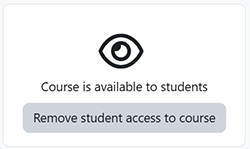
To remove student access and hide the course, click on the grey Remove student access to course button.