Manage Moodle activity and resource visibility
Updated on: 3 February 2026
How to manage the availability of activities and resources in Moodle.
Hide an activity or resource in Moodle
Hide an activity or resource by clicking the ellipsis icon for the activity or resource, then selecting Hide.
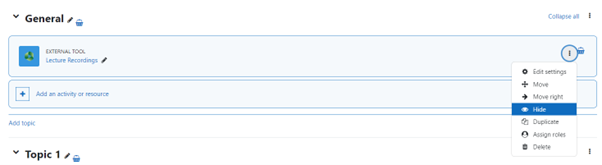
Once hidden, users with editing access to a course will see the text Hidden from students, below any hidden items.

Show an activity or resource
Make the activity or resource visible by clicking the ellipsis icon and selecting Show.

Hide an activity or resource, but make it available
Hide an activity or resource on the course page, but allow students to access it through a hyperlink by hiding the activity or resource and then selecting Make available from the ellipsis menu.
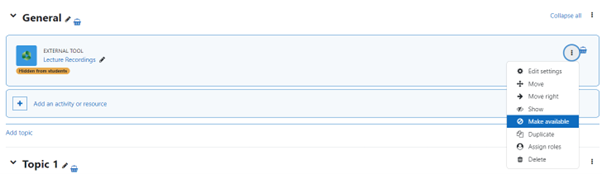
The activity or resource will now display with the text Available but not shown on course page.

Right-click on the activity link and select Copy link to provide access to the activity or resource through a hyperlink.

Make an activity or resource unavailable
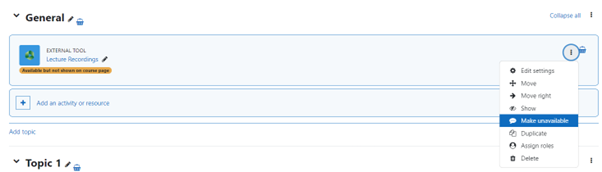
Make an activity unavailable by selecting Make unavailable from the ellipsis menu.
Common module settings
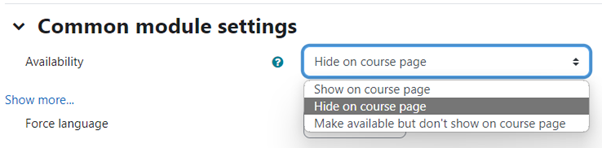
You can also change the availability by editing the settings of the activity or resource. Scroll down to the common module settings and change the Availability option.
Enter student view to confirm what students will be able to see.