How to set up the Champion Health app
Updated on: 23 October 2025
Steps to set up and access Champion Health on your mobile or desktop
The University offers an Employee Assistance Programme (EAP) from PAM Wellness to all staff on permanent and fixed-term contracts. As part of the EAP service, PAM Wellness provides free access to the Champion Health app, which offers a wide range of health and wellbeing resources.
- The app creates personalised content based on your goals and areas of focus.
- When you first register, you will be asked to provide some personal information to help tailor the resources to your needs.
- Any information you enter into the Champion Health app is confidential and will not be shared with anyone at the University.
You can use Champion Health on your desktop, laptop or mobile device. We recommend setting up the app on your smartphone for the best experience.
The Champion Health app is available for iOS and Android. When prompted, enter the University access code: UOSA.
Initial registration
To use the Champion Health app for the first time, you will need to register.
Choose how to register
- You can register on your desktop, laptop or by installing the Champion Health app on your mobile device.
- We recommend registering on your smartphone to make it easier to use the app wherever you are.
- After you register, you will use the same login details to access Champion Health on both the website and the app.
What to expect during registration
During registration, you will be asked to provide some personal information, such as your age, gender, weight, areas of interest, stress levels and exercise habits. This helps the app create personalised content for you.
Registration usually takes around 10 minutes and is only required the first time you use the service.
Your information is confidential
Your information is confidential and will only be used to personalise your experience in the app. You can update your details at any time within the app, so your content can adapt to your changing health and wellbeing needs.
Register on the mobile app
Where to find the app
You can download the Champion Health app in several ways:
- Visit the registration page, which includes links to the Apple App Store and Google Play.
- Use the buttons below to go straight to the app in your device’s app store.
- Or, search for ‘Champion Health’ in the Apple App Store or Google Play and follow the prompts to install it.
Step 1: Welcome to Champion

- Select 'Sign in'
Step 2: Your access code
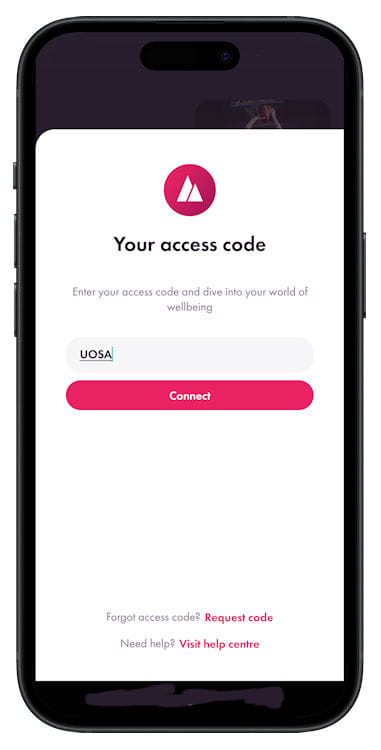
- Enter the University's access code:
UOSA. - Tap on the Connect button.
Step 3: Sign up

- When you first register, select 'Not a member? Sign up' beneath the log in form.
Step 4: Email address and password

- Enter your University email address that ends @st-andrews.ac.uk.
- Choose a unique password for this service. (This service does not use the University's single sign-on (SSO) service.)
- Your password must contain:
- a minimum of 8 characters
- at least 1 uppercase character
- at least 1 lowercase character
- at least 1 number
- Enter your new password again.
- Select the Continue button.
Step 5: Complete your profile

You will then be taken through a number of steps to complete your profile.
This will include entering your:
- name
- setting a four-digit passcode
- region
- age
- gender
- weight
- areas of interest
- stress levels
- exercise habits
and you will be asked to agree to the Champion Health terms and conditions.
The personal details will be used by the app to give you personalised content and enable you to set some health goals. This step only happens once, while you are registering yourself on the app.
Setup takes around 5 to 10 minutes.
Step 6: Set up biometric authentication (optional)
You can set up biometric authentication to make it easier to access the app in future.
- On an iOS device this is called Face ID or Touch ID.
- On an Android devices this is usually called Fingerprint or Face unlock.
Depending on your device, you may have already completed this step during registration.
- While logged in to the mobile app, select the mountain icon in the top right-hand corner.
- Select Account & Security.

- Toggle the Biometrics switch to on.

- Note that you can also change your password on this screen.
Register on your desktop
If you choose to register on your desktop or laptop, rather than on a mobile device, follow these instructions.
Step 1: Begin the registration
- In a web browser, visit the PAM Wellness app page.
- Select the 'Register Today' button.
- Select the first option under 'Register' to visit the 'registration page'.
Step 2: Your access code
- Enter the University's access code:
UOSA. - Tap on the Connect button.
Step 3: Sign up
- When you first register, select 'Not a member? Sign up' beneath the login form.
Step 4: Email address and password
- Enter your University email address that ends @st-andrews.ac.uk.
- Choose a unique password for this service. (This service does not use the University's single sign-on (SSO) service.)
- Your password must contain:
- a minimum of 8 characters
- at least 1 uppercase character
- at least 1 lowercase character
- at least 1 number
Step 5: Complete your profile
You will then be taken through a number of steps to complete your profile.
This will include your:
- name
- setting a four-digit passcode
- region
- age
- gender
- weight
- areas of interest
- stress levels
- exercise habits
and you will be asked to agree to the Champion Health terms and conditions.
The personal details will be used by the app to give you personalised content and enable you to set some health goals. This step only happens once, while you are registering yourself on the app.
Set up takes around 5 to 10 minutes.
Logging in after registration
Once you have registered, you can use the same username and password to log in to Champion Health on your desktop, laptop or mobile device.
Confidential login
Single sign-on is not available for the Champion Health app, because EAP services are confidential. This means you will log in using your University email address and a unique password that you choose.
Logging in on different devices
The login process will vary depending on whether you are using a desktop or mobile device, and whether you have enabled biometric login (such as Face ID, Touch ID, fingerprint or face recognition).
Follow the prompts on your device to complete the login.
Manual sign in
To sign in manually, you will need
- the University access code
UOSA. - your University email address
- your unique Champion Health password
- your four-digit passcode
Support with registering or logging in
If you have any problems registering or logging in to the Champion Health app, you can get help by emailing accountmanagers@pamwellbeing.co.uk.
The support team will help you with any issues related to registration or login.
Health and wellbeing resources available
The app gives you free access to a wide range of wellbeing resources, including:
- podcasts
- videos
- articles
- self-guided interactive courses
- toolkits
Topics include:
- mental wellbeing
- physical wellbeing
- movement
- sleep and rest
- financial wellbeing
- nutrition
- work and productivity
- energy
The app and all its content are free for University staff.
Links to external sites and information
The University is not liable for external web content and may not be aware when this content is changed or removed.