Enrol multiple users on a Moodle course
Updated on: 2 February 2026
Learn how to use Moodle's bulk enrolment tool to enrol more than one user in one go.
When can this tool be used?
The enrolment features of this tool are only available for adding and removing users on Moodle courses that do not have enrolments synchronised from MMS.
Requirements
You will need to have the role of Course Coordinator or Course Facilitator to use this tool for enrolments.
If you have multiple roles on a course, use the switch role to feature to ensure you are interacting with the course in the required role.
How to use bulk enrolment
You can use the following University of St Andrews account data to enrol users in bulk:
- Username
- Email address
- Matriculation number – referred to as ID Number in the tool
To access the tool:
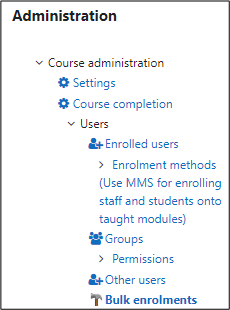
1. Expand the Users section in the Administration block, then select Bulk enrolments.
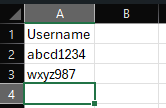
2. You will need a CSV file containing the users you wish to enrol. We recommend using one file per role type, for example:
- File A contains all students
- File B contains all lecturers
Ensure the first row of the CSV file is either used for column headings or is blank. You should enter your user data from row 2 onwards.
3. Upload the CSV file into the tool. You should be able to leave all the default options selected.

4. Select your preferred data option for column 1. This will be either Username, ID number or Email address.
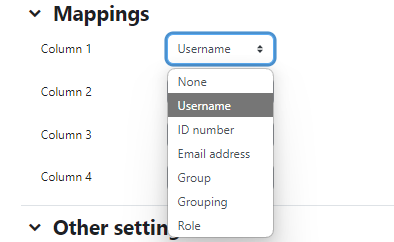
5. Columns 2,3 and 4 should be set to None.

6. Select the Role to assign to all users in your CSV file.

7. The enrolment process will start when you click Enrol them to my course. Check the participants list to confirm the correct users were enrolled in the correct role.
If you have any problems with the bulk enrolment tool, check the email confirmation sent after clicking Enrol them to my course as this can often highlight any issues.