Copy content from one Moodle course to another
Updated on: 22 January 2026
Learn how to use the course import functionality in Moodle to copy content from one course to another.
The following terms will be used in this guide:
- Source course: the course you want to copy the content from.
- Destination course: the course you want to copy the content to.
How import works
- Import adds content from the source course to existing content in the destination course, it does not replace it.
- Some or all content from the source course can be imported into the destination course.
- Imported content is placed underneath any pre-existing content in a section.
- Imported content from section 1 of the source course goes into section 1 of the destination course, and the same one-to-one mapping applies to all subsequent sections.
Here are two examples:
-
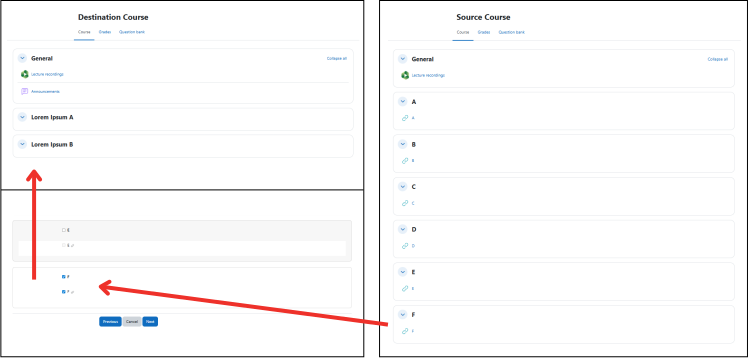
- Destination course has three sections.
- Source course has seven sections.
- User wants to import only section 7 (F) from the source course to the destination course.
- User deselects all items, except section 7 (F) during import.
Result
Four sections are created in the destination course and these appear after the three sections that already existed. Sections 4, 5 and 6 are empty with default titles ('New section'). Section 7 is a copy of F in the source course.

Considerations
If you are importing only one or a few select sections from the source course to the destination course, you may have to manually delete empty sections in the destination course post-import if they are created.
-
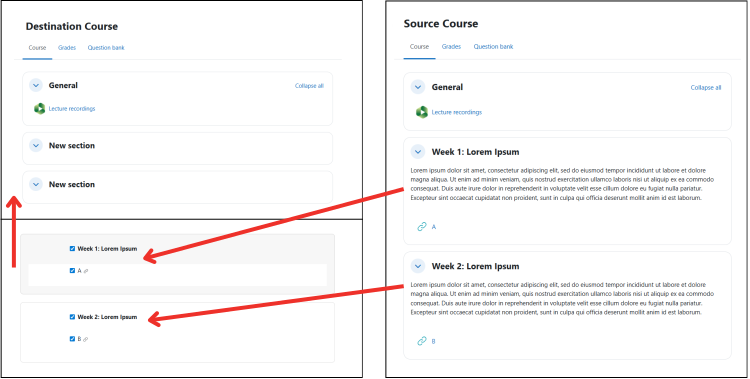
- Destination course has three sections.
- Sections 2 and 3 do not have bespoke titles (left at default 'New section') or summaries.
- User wants to import sections 2 and 3, which do have bespoke titles and summaries, from the source course to the destination course.
- User selects sections 2 and 3 during import.
Result
Sections 2 and 3 are imported. The bespoke titles and summaries are included in the import.

Considerations
Consider whether you want bespoke section titles and or summaries to be imported before you perform an import. If you do want them to be imported, you will need to manually clear (delete) any relevant bespoke titles and or summaries already present in your destination course.
Deleting a bespoke title will revert the title to the default 'New section'. This default title can be overwritten at import, a bespoke title cannot.
Not copied with import
Import does not copy the following things into the destination course:
- Participants, group members or user data
- Course settings, including course format
- Bespoke section titles, unless set to default 'New section' in destination course
- Section summaries, unless empty in the destination course
Carry out an import
Go to the destination course in Moodle, then carry out these steps:
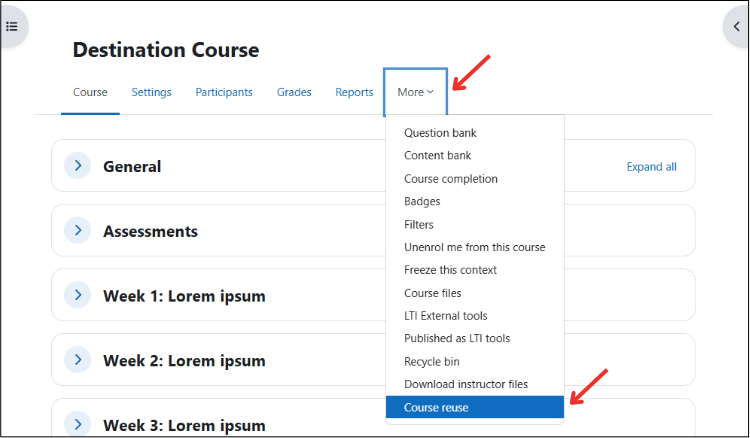
- Select More > Course reuse > Import.
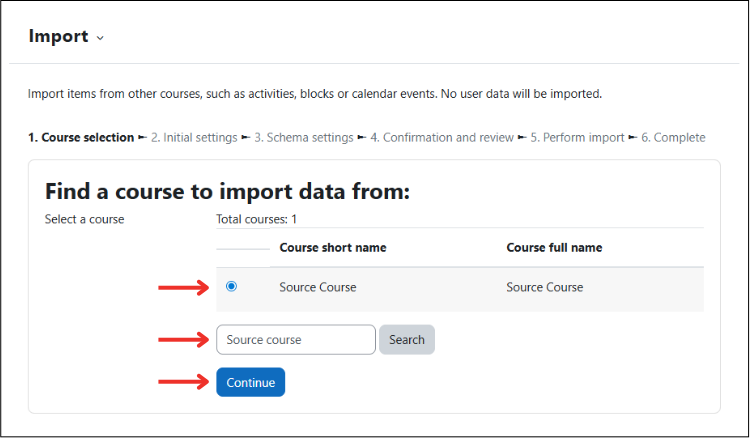
- Search for and select the source course, and click Continue.
- Read the section on Initial settings selection in this guide and use the checkboxes to decide on the import settings, and click Next.
- Read the section on Schema settings selection in this guide and use the checkboxes to decide what content you want to include, and click Next.
You must keep a section checked if you have an item in that section which you wish to import. - Review the settings you applied. Choose Previous if you want to make changes.
- Once you are happy with the settings applied, select Perform import.
- Wait for the import process to complete. This can take some time if there is a lot of content.
- Click Continue to return to the destination course.
After the import, it can take up to 24 hours for everything you selected to show up in the course. It's usually immediate, but there can be a delay depending on the volume or size of the item.
-
1. To start an import in the destination course, select Course reuse.
2. Select Import on the next page

3. Search for and select the source course you wish to import from.
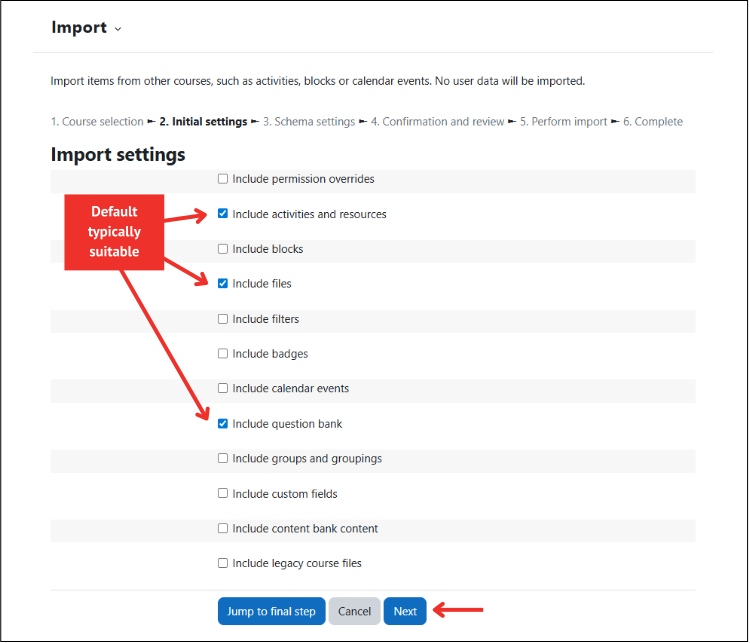
4. Choose the Initial settings you wish to apply to the import. No action is usually required here as the default selections are typically appropriate for most users.
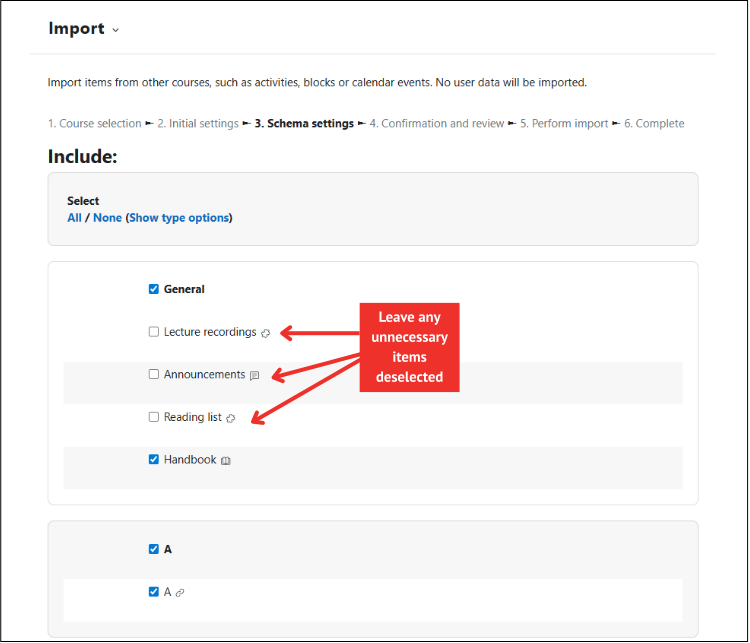
5. Select or deselect the Schema settings you wish to apply to the import. Remember, you must keep a section checked if you have an item in that section that you wish to import. Once done, scroll down and choose Next.
6. The next page gives you the opportunity to review the settings you have applied to the import. Scroll down to reach the Perform import button. There is also a Previous option if you wish to go back and amend some settings.

7. The next page shows the progress of the import. Once done, you are presented with an Import complete message and may then use the Continue button to return to the destination course.

-
If any of the items you chose to include had date-based access restrictions and or settings associated with them in the source course, you need to manually update these dates on the items in the destination course. This applies to due dates, for example.

Initial settings selection
In most cases, staff only need to import content, so the default import settings are appropriate.
- Include activities and resources
- Include question bank if origin content contains quizzes
- Include files
All other setting options can be left unchecked, unless you need to include them.
Schema settings selection
Ensure you deselect the boxes for the following items (if present) to avoid creating duplicates:
- Announcements
- Lecture recordings
- Reading list
You can use the Select controls to speed up the selection process.

Getting help
Read more on how to import course data on the Moodle website. If you require assistance or have questions about course import, contact the IT Service Desk.
Links to external sites and information
The University is not liable for external web content and may not be aware when this content is changed or removed.