Check and improve the accessibility of Moodle course content
Updated on: 20 May 2026
How to use Ally to address accessibility issues in your Moodle course.
Overview
Ally is a software integration present in the University's Moodle sites that helps:
- students access course content in alternative formats
- course editors (instructors) make their course content more accessible
This guide focuses on the use of Ally by course editors, including how to:
- access the Ally Accessibility Assistant designed to help you make improvements
- fix the most common accessibility issues identified by Ally
Checking for accessibility
You can check the accessibility of your course content in Moodle in two ways.
1. Accessibility indicators
The indicator icons show how accessible each content item is. Clicking an icon opens the Ally Accessibility Assistant, where you can see the item’s score and get guidance on fixing any issues.

2. Accessibility report
The accessibility report shows an accessibility overview for the entire course, including all assessed content items. Choose Reports then Accessibility report to access it.
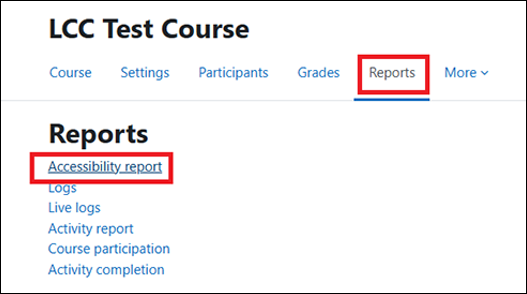
The accessibility report opens in a separate browser tab and displays an easy to navigate summary. Select Start to reach content with the easiest issues to fix.

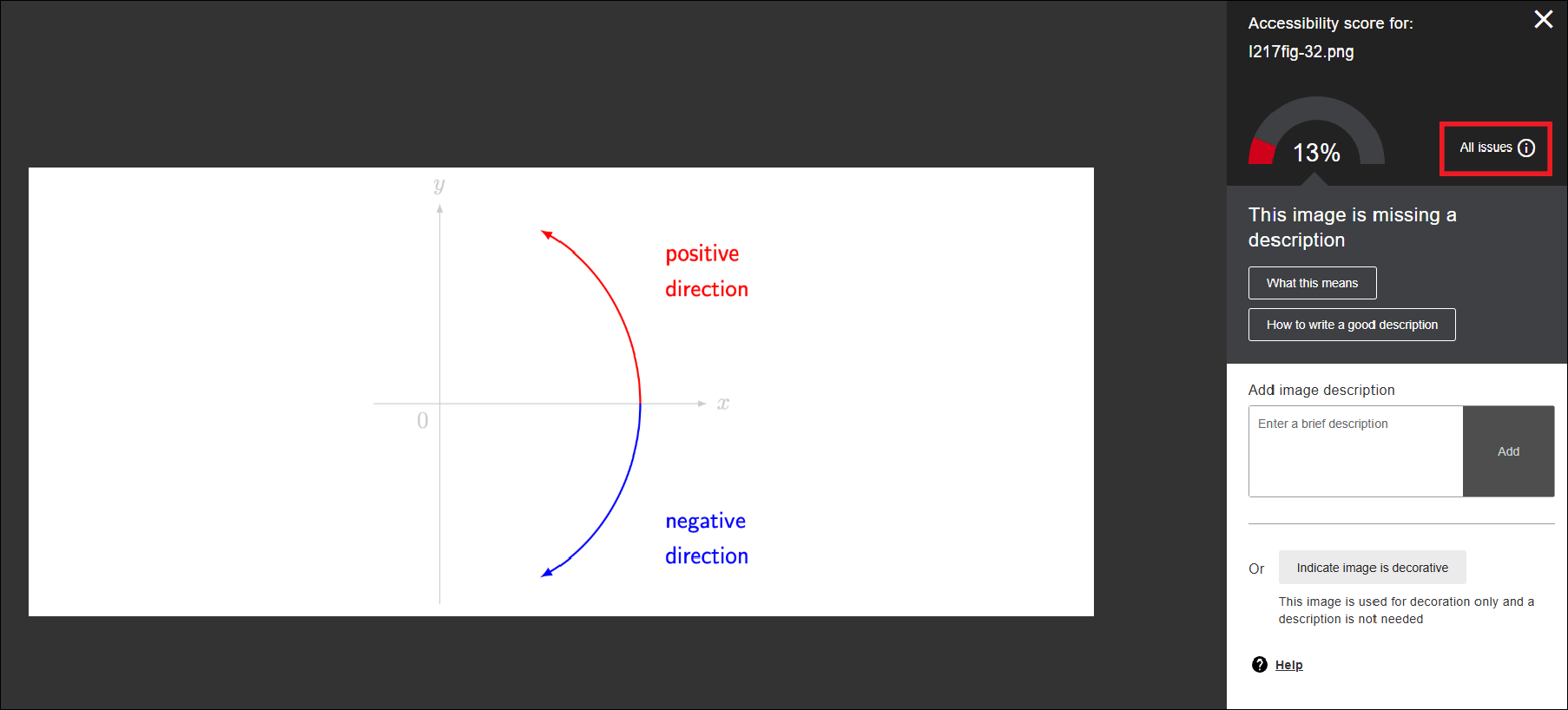
This shows a list of content items with problems. Click any item to open the Ally Accessibility Assistant, which will guide you through the issues, explain their impact and tell you how to fix them.
If your file has more than one issue, you can click on All issues to display them.
Fixing common issues
Some issues can be fixed in Moodle through the Ally Accessibility Assistant, others need you to open the file in its original application, like Word or PowerPoint.
Solutions to the five most common issues:
-
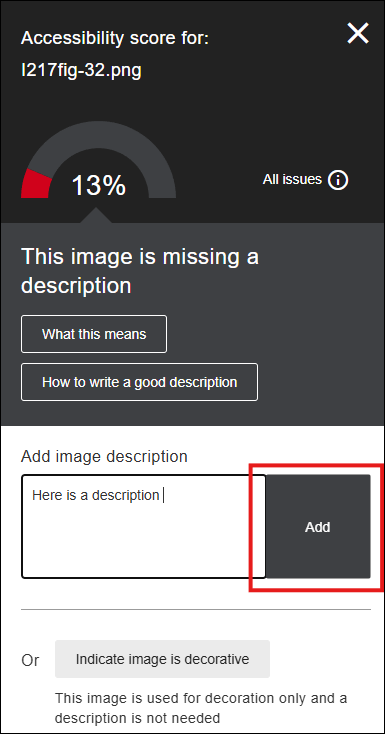
Fix this issue directly in the Ally Accessibility Assistant in Moodle.
Add a description into the box provided then click the Add button.
Tip: If an image adds meaningful information to the course, it requires a description, otherwise you should mark it as decorative. Ally provides advice on writing good image descriptions.
-
This is an issue you cannot correct in Moodle.
Open the file in the application you created it in.
If using Word, you can use Microsoft's Accessibility Assistant to resolve the issue. For example, after running the Microsoft Accessibility Assistant in Word, you can see any contrast issue listed.

The Microsoft Accessibility Assistant will then give you some suggestions on how to fix this issue.

Once the issues have been corrected in the original application, save the file and upload it to Moodle through the Ally Accessibility Assistant.

-
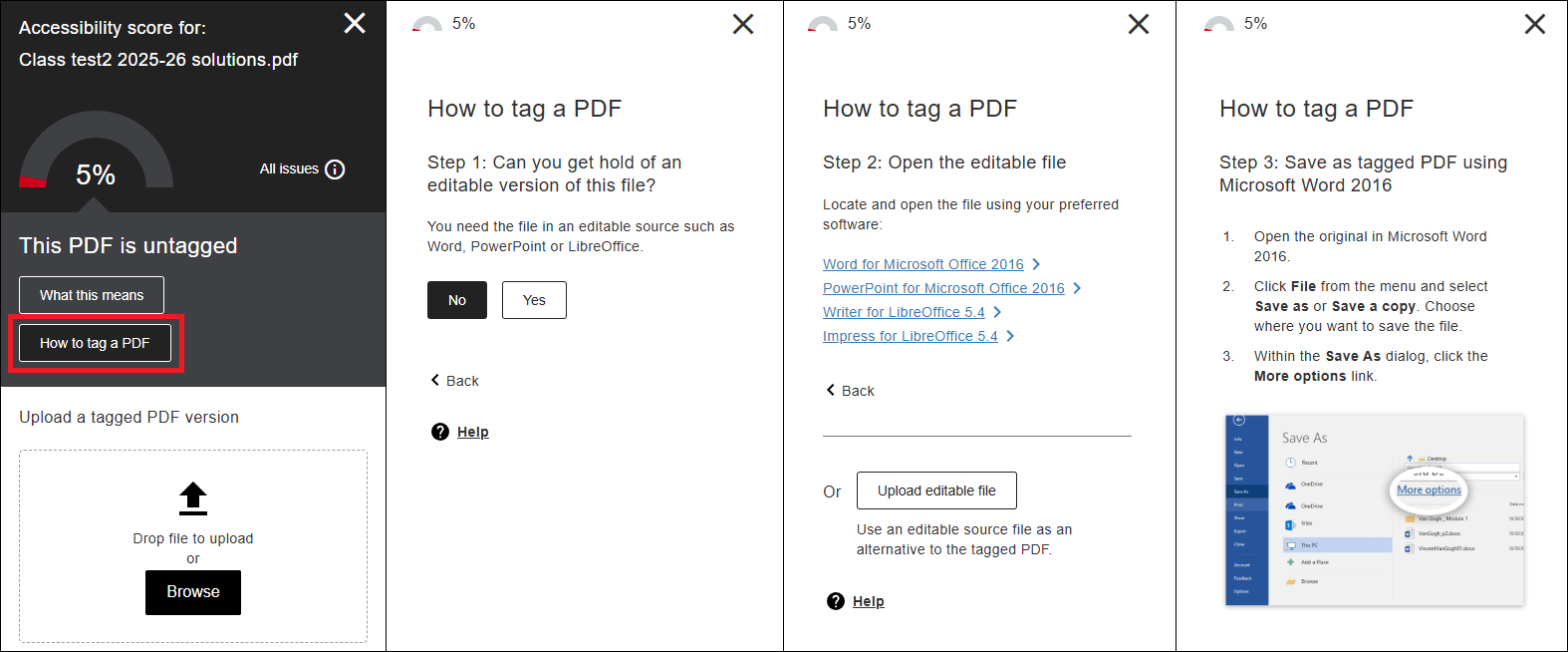
The Ally Accessibility Assistant will tell you how to fix this issue. You will require access to the original file. To access the instructions, click How to tag a pdf.
-
The Ally Accessibility Assistant will take you through how to fix this issue. You will require access to the original file. To access the instructions, click How to add descriptions.
Tip: If an image adds meaningful information to the course, it requires a description, otherwise you should mark it as decorative. Ally provides advice on writing good image descriptions.

-
You can easily add a language directly through the Ally Accessibility Assistant in Moodle, or use its instructions to set the language on the original file and reupload.
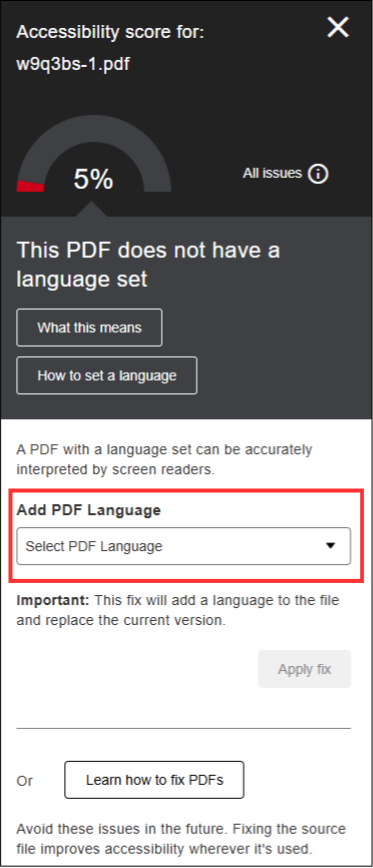
These issues were identified as the most common when we reviewed the Ally Institutional Report.
Video and audio content
Ally does not check the accessibility of video or audio content in your course. Although videos can be uploaded to and recorded in Moodle directly, this is not advised. Instead, use Panopto to record and store your videos, then make them accessible through the Moodle course using a link or embed. Panopto provides captions, helping to ensure recorded content is accessible, particularly for users who are deaf or hard of hearing.
Ally documentation
For more information, refer to the Ally for LMS Help Centre.
Links to external sites and information
The University is not liable for external web content and may not be aware when this content is changed or removed.