Return to Master's level photonics starter page In the MSc and Eng Doc courses we will be using a web-based system for sharing various items of information. This system is "WebCT", which was selected as the University’s Managed Learning Environment (MLE) at the start of session 2001-2002. This can allow the following:-
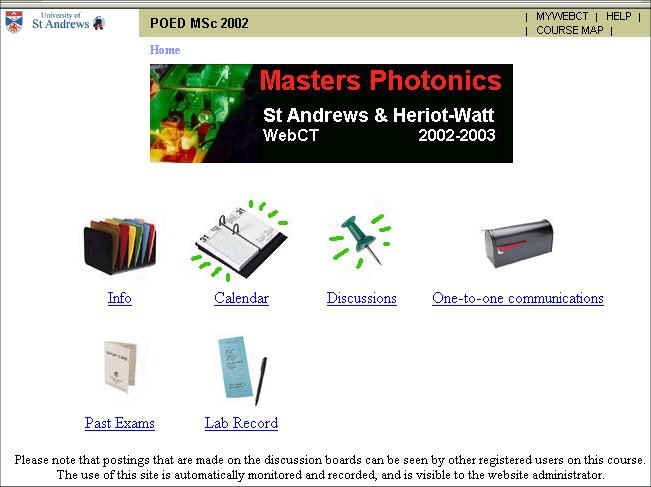
You may access the login page using the link above. You will need to enter your username, which is the same as your IT Services username, but without the @st-andrews.ac.uk. Mine, for example, is "bds2". Your WebCT password will initially be allocated to you, though you should change this once you login to WebCT. Logging in should get you to a screen looking something like the following:
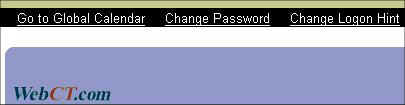
This is the main navigation page for the site. Clicking on the "Home" link (near the top) will bring you back to this view, no matter where you are in the system. Hopefully the links are self-explanatory, but some more information is given below. It is strongly suggested that you change your WebCT password. To do this, click on the "MYWEBCT" link at the top right of the screen to get to a page which has the links shown below in the top right hand corner. Change your password using the "change password" button at the top right of this screen.. It is recommended that you use a different password to the one you use for your university email etc account. You should also set a "logon hint" using the link near the top right of that screen. More details are available from the University page on logging on to WebCT. The rest of the screen will show you what other WebCT courses you are currently registered on in St Andrews. Click on POED MSc 2002 to get back to the course home page.
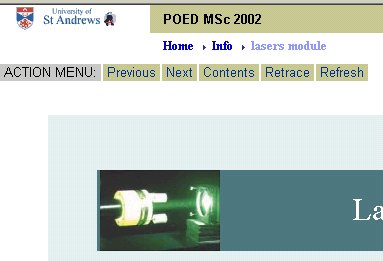
The "Info" icon on the top row of the home page is a link to secure web pages. These contain material on the way the course works, and links to other useful information. As you browse though a section like this, the "Home" link will always be at the top to take you back to the home page (see below). Other pages that you have visited on your way to a particular page often also show up. WebCT refers to these markers as "breadcrumbs". Within an information (or content) package such as this "information" one, an "ACTION MENU" will be displayed. Clicking on "Contents" will take you back to a listing of what is in this package. "Previous" and "Next" take you through the pages in the same order as they are listed in the contents listing. In some other WebCT material that you might use, there are also links on this bar to quizzes and glossary items.
The "Past Exams" icon takes you to copies of past examination papers (and some possible solutions) in Adobe pdf format. Please note that all the material on the site is subject to copyright regulations. Thus far, this is little different from conventional web pages, other than that the course co-ordinator has the ability to discover how often each resource has been looked at by whom, and that the pages cannot readily be looked at by people who are not associated with the course. There is a calendar built into the system. The green lines beside the icon above indicate that new entries have been added since this student last looked at it. Clicking on a date within the calendar will bring up a more detailed entry about what is happening on that day. You may add your own entries to the calendar, though they will be visible only to you. By clicking on "MYWEBCT" at the top of the home page you will be taken back to a page that shows you all the St Andrews WebCT courses on which you are registered (and the password change facility). There you will find a link to the "Global calendar". This is similar to the calendar already described, but this will contain details from all of the WebCT courses on which you are registered.
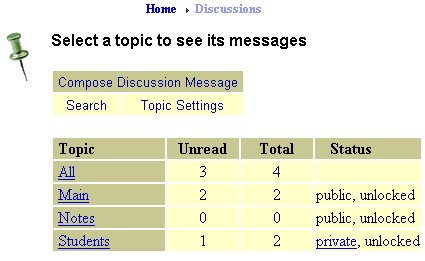
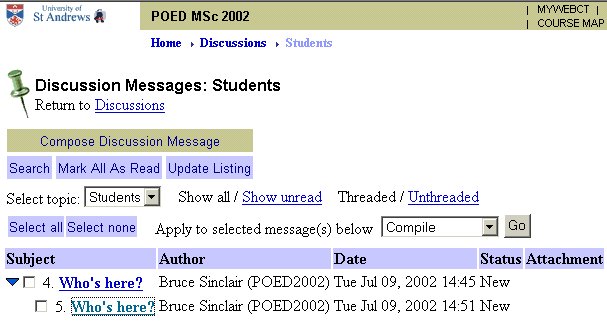
The Discussions tool will allow us to communicate using a structured discussion list in one place. There is one discussion group for the whole class and staff (Main), and one visible only by the students and me. (The "Main" group should be visible only by those associated with this course, despite the "public" label used by WebCT). All the discussion entries to which you have access are available via "All". The picture below shows the "Students" list. I recommend clicking on the "Show All" and "Threaded" buttons. This then shows you everything that is there, and with the messages grouped according to topic rather than time. Clicking on any of the titles alongside will bring up the comment on the topic (the "thread"). Replying to one of these comments will add another message to that thread. To start a new thread in the list, choose "Compose Discussion Message". The blue triangle is something to be wary of. This icon is at the start of each thread. The default seems to be for this triangle to point to the right, and all the messages in the thread other than the first one to be hidden. You need to click on the blue triangle to make it point downwards (as below) to see all the messages in thread.
Once you post a message, you will need to click on "Update Listing" (or leave the page and come back to it) before the new posting will be visible to you. Should you wish to gather together messages to print, click on the checkboxes, and then on "Compile". It is possible to add attachments to your postings. When composing a message follow the appropriate links to browse your local file system for the file you wish to attach, and then click on the attach button. When you do an "Update Listing" you should then see a paperclip next to your message. If you wish to retrieve an attachment, click on the paperclip and follow the instructions. The "one-to-one communication" tool is not far different from the Discussion list, but now the message is sent within WebCT only to those who you choose to send it. It is a bit like an email system restricted to those on this course, and restricted to being within WebCT. When you click on "Compose" to compose a message, you may click on "Browse" to be given a list of all those involved with the module, and you can choose one or more of these to send your message to. These messages are stored in your WebCT "one-to-one communication" list. The benefit of having this quasi-email within WebCT is that emails associated with the module can all be kept in one place. If you go to the "Message Settings" link, you may choose to have your WebCT quasi-emails forwarded to your St Andrews email account (recommended). Please take care in setting the appropriate full St Andrews email address, or the central WebCT person will get error messages that he will not appreciate. This option is not appropriate to use until after you obtain use of your St Andrews email address.
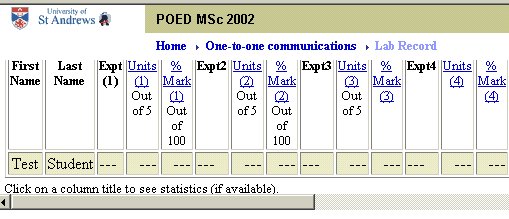
The "Lab Record" icon allows you to view your mark for each piece of lab work (and in due course probably other assessments), and compare your mark with the class average. In some cases, you will be able to view other aspects of the statistics of the class marks. No one other than the academic staff involved should be able to view any marks other than their own. I hope people associated with the course find this WebCT system useful. I am happy to try to answer any queries, or to receive constructive criticism. last modified by Bruce Sinclair 29.8.02 |